Download ChatGPT Ads to Google Sheets
TL;DR: To download ChatGPT Ads data to Google Sheets, create an API key in Ads Manager (Settings, General, API Keys), paste a short Apps Script into your Sheet, save the key as a script property called OPENAI_ADS_API_KEY, and run setup once. From then on the script pulls the last 30 days of daily campaign data (impressions, clicks, spend, CTR, CPC, CPM, conversions) every morning, using the OpenAI Ads Insights API. No add-on, no manual exports.
If you run ChatGPT Ads, the numbers live in Ads Manager. That's fine until you want them next to your Google Ads and Meta data in one report, or you're tired of exporting a file every Monday. The OpenAI Ads API has an insights endpoint that returns exactly that data, and Google Sheets can call it for free through Apps Script.
Below is the whole setup: the API key, the script, the first run, and what to check when something fails. The result is one tab where each row is one day for one campaign, refreshed automatically. It follows OpenAI's own Insights API reference and reporting guide. If you're also working on tracking inside the platform, see my posts on conversion tracking for OpenAI Ads Manager and UTM tracking for ChatGPT Ads in GA4.
What you get in the sheet
One tab named ChatGPT Ads, one row per day per campaign, newest first. These are the columns:
| Column | What it holds | Example |
|---|---|---|
| date | The day, in the ad account's time zone | 2026-11-18 |
| level | Aggregation level | campaign |
| entity_id | Campaign ID | cmpn_123 |
| entity_name | Campaign name | Spring launch |
| impressions | Impressions | 1200 |
| clicks | Clicks | 36 |
| spend | Spend in whole currency units | 18.42 |
| ctr | Click-through rate as a fraction | 0.03 |
| cpc | Average cost per click | 0.51 |
| cpm | Cost per 1,000 impressions | 15.35 |
| conversions | Attributed conversions | 2 |
| timezone | Time zone of the row | America/New_York |
| pulled_at | When the script last wrote the row | 2026-11-19 |
| currency | Currency label you set in the script | USD |
The values are examples. Per OpenAI's reporting guide, spend, CPC and CPM come back in whole currency units of the ad account's currency (12.50 means 12.50, not micros). Conversions include click-through and view-through goal conversions, with a 30-day click window and a 1-day view window by default, dated by the ad interaction rather than the conversion itself.
Before you start
- Access to a ChatGPT Ads account where you can create API keys in Ads Manager.
- Edit access to a Google Sheet. A new blank one is fine.
- About five minutes. You do this once per Sheet.
One API key belongs to one ad account, so use one Sheet per account.
Step 1: Create an API key in Ads Manager
Log in at ads.openai.com, open Settings, then General, and scroll to API Keys. Click Create New Key, give it a name you'll recognize, and copy the key. OpenAI's quickstart describes the same place.
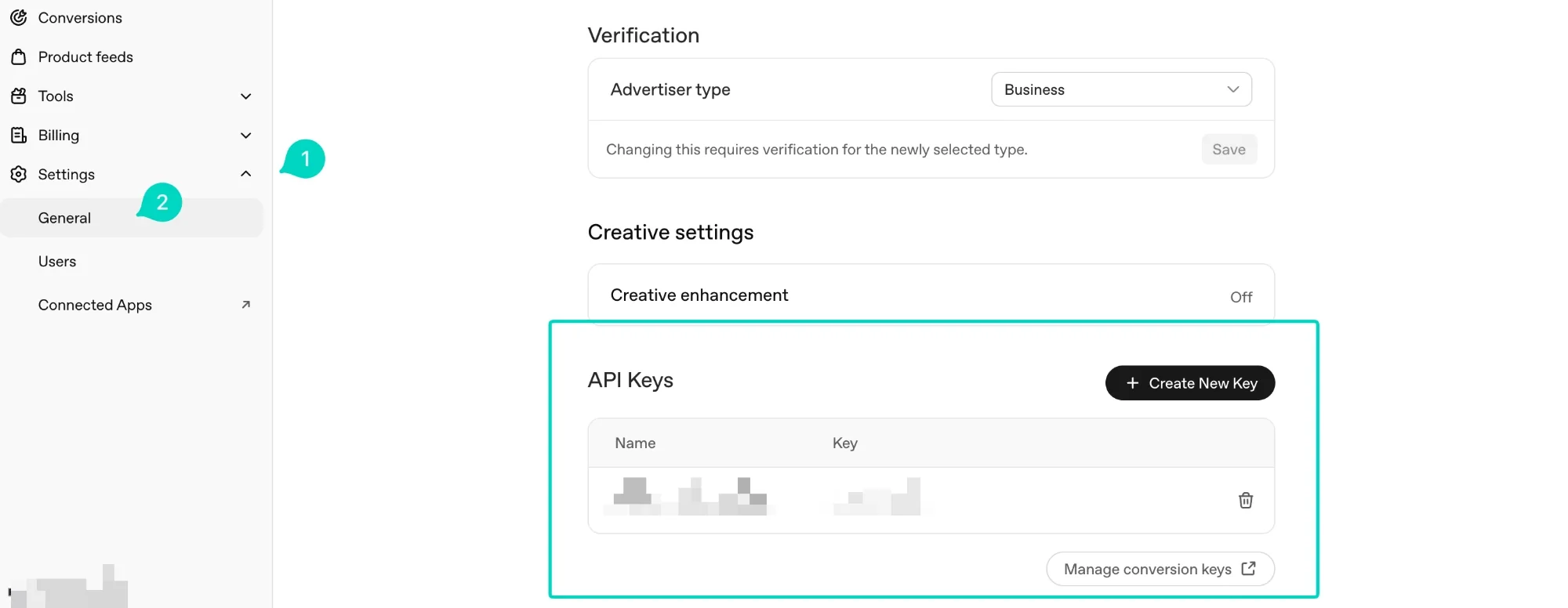
Treat the key like a password. Don't paste it into a cell or into the code. In the next steps it goes into a protected script property.
Step 2: Open Apps Script in your Sheet
In your Google Sheet, click Extensions, then Apps Script. A code editor opens with a file called Code.gs.
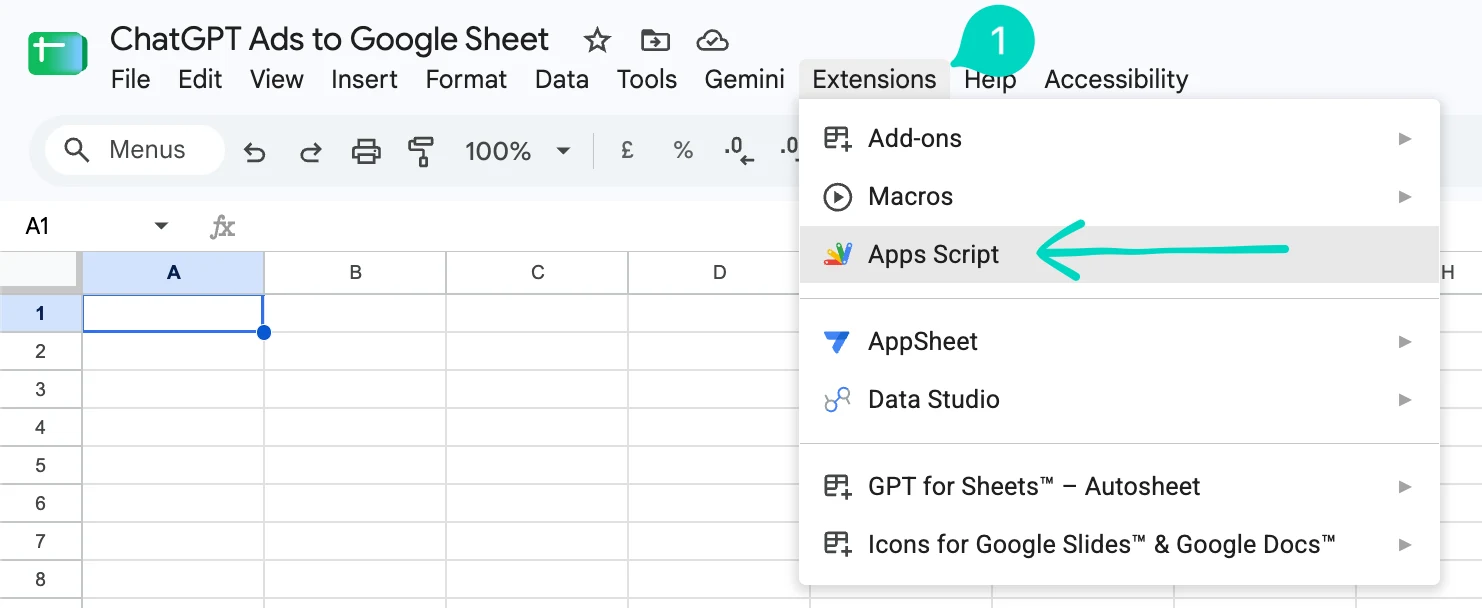
Next, match the script's time zone to your ad account's. The script works out "yesterday" in the script's time zone, and the API reads dates in the ad account's time zone unless told otherwise, so matching them avoids an off-by-one day. Open Project Settings (the gear icon on the left), tick Show "appsscript.json" manifest file in editor, open appsscript.json from the file list, and set "timeZone" to your ad account's time zone, for example "America/Denver". Google's manifest reference describes the field.
Step 3: Paste the script
Delete everything in Code.gs, paste the script below, and save it with Ctrl or Cmd + S.
/**
 * ChatGPT Ads (OpenAI Ads API) to Google Sheets
 *
 * Endpoint: GET https://api.ads.openai.com/v1/ad_account/insights
 * Docs:     https://developers.openai.com/ads/api-reference/insights
 *
 * Setup:
 *   Project Settings, Script properties, add OPENAI_ADS_API_KEY = your Ads API key
 *   Then run setup() once (creates the sheet and the daily trigger).
 */

const CONFIG = {
  SHEET_NAME: 'ChatGPT Ads',
  DAYS_BACK: 30,               // rolling window re-pulled on each run (catches late conversions)
  LEVEL: 'campaign',           // ad_account | campaign | ad_group | ad
  INCLUDE_CONVERSIONS: true,   // falls back to delivery metrics only if the API rejects it
  ATTRIBUTION_WINDOW_DAYS: 30, // 7 | 14 | 30 (click-through window)
  BASE_URL: 'https://api.ads.openai.com/v1',
  CURRENCY: 'USD',             // label only, must match your ad account currency
};

const NAME_FIELD = {
  ad_account: 'ad_account.name',
  campaign: 'campaign.name',
  ad_group: 'ad_group.name',
  ad: 'ad.name',
};

const HEADERS = ['date', 'level', 'entity_id', 'entity_name',
  'impressions', 'clicks', 'spend', 'ctr', 'cpc', 'cpm', 'conversions', 'timezone', 'pulled_at', 'currency'];

function onOpen() {
  SpreadsheetApp.getUi()
    .createMenu('ChatGPT Ads')
    .addItem('Pull data now', 'syncChatGptAds')
    .addItem('Set up daily trigger', 'setup')
    .addToUi();
}

function setup() {
  getSheet_();
  ScriptApp.getProjectTriggers()
    .filter(t => t.getHandlerFunction() === 'syncChatGptAds')
    .forEach(t => ScriptApp.deleteTrigger(t));
  ScriptApp.newTrigger('syncChatGptAds').timeBased().everyDays(1).atHour(6).create();
}

function syncChatGptAds() {
  const apiKey = PropertiesService.getScriptProperties().getProperty('OPENAI_ADS_API_KEY');
  if (!apiKey) throw new Error('Missing script property OPENAI_ADS_API_KEY.');

  const tz = Session.getScriptTimeZone();
  const until = new Date(Date.now() - 24 * 3600 * 1000);            // yesterday
  const since = new Date(until.getTime() - (CONFIG.DAYS_BACK - 1) * 24 * 3600 * 1000);
  const sinceStr = Utilities.formatDate(since, tz, 'yyyy-MM-dd');
  const untilStr = Utilities.formatDate(until, tz, 'yyyy-MM-dd');
  const pulledAt = new Date();

  const newRows = fetchInsights_(apiKey, sinceStr, untilStr).map(r => [
    r.readable_time,
    CONFIG.LEVEL,
    r[CONFIG.LEVEL + '_id'] || '',
    r[NAME_FIELD[CONFIG.LEVEL].replace('.', '_')] || '',
    num_(r.impressions), num_(r.clicks), num_(r.spend),
    num_(r.ctr), num_(r.cpc), num_(r.cpm), num_(r.conversions),
    r.timezone || '',
    pulledAt,
    CONFIG.CURRENCY,
  ]);

  writeRows_(newRows, sinceStr, untilStr);
}

function fetchInsights_(apiKey, since, until) {
  const base = ['metadata.readable_time', 'metadata.timezone',
    CONFIG.LEVEL + '.id', NAME_FIELD[CONFIG.LEVEL]];
  const metrics = ['impressions', 'clicks', 'spend', 'ctr', 'cpc', 'cpm'];
  if (CONFIG.INCLUDE_CONVERSIONS) metrics.push('conversions');
  let fields = base.concat(metrics.map(m => CONFIG.LEVEL + '.' + m));

  try {
    return paginate_(apiKey, fields, since, until);
  } catch (e) {
    if (CONFIG.INCLUDE_CONVERSIONS && /HTTP 400/.test(e.message)) {
      console.warn('Conversions rejected, retrying without: ' + e.message);
      fields = fields.filter(f => !/\.conversions$/.test(f));
      return paginate_(apiKey, fields, since, until);
    }
    throw e;
  }
}

function paginate_(apiKey, fields, since, until) {
  const rows = [];
  let after = null;
  do {
    const params = [
      ['aggregation_level', CONFIG.LEVEL],
      ['time_granularity', 'daily'],
      ['time_ranges[]', JSON.stringify({ type: 'date_range', since: since, until: until })],
      ['includes[]', 'zero_impression_items'],
      ['attribution_window_days', String(CONFIG.ATTRIBUTION_WINDOW_DAYS)],
      ['limit', '2000'],
    ];
    fields.forEach(f => params.push(['fields[]', f]));
    if (after) params.push(['after', after]);

    const url = CONFIG.BASE_URL + '/ad_account/insights?' +
      params.map(p => encodeURIComponent(p[0]) + '=' + encodeURIComponent(p[1])).join('&');
    const res = fetchWithRetry_(url, apiKey);
    (res.data || []).forEach(r => rows.push(r));
    after = res.has_more ? res.last_id : null;
  } while (after);
  return rows;
}

function fetchWithRetry_(url, apiKey) {
  for (let attempt = 0; attempt < 5; attempt++) {
    const resp = UrlFetchApp.fetch(url, {
      method: 'get',
      headers: { Authorization: 'Bearer ' + apiKey, Accept: 'application/json' },
      muteHttpExceptions: true,
    });
    const code = resp.getResponseCode();
    if (code === 200) return JSON.parse(resp.getContentText());
    if (code === 429 || code >= 500) { Utilities.sleep(Math.pow(2, attempt) * 1000); continue; }
    throw new Error('HTTP ' + code + ': ' + resp.getContentText().slice(0, 500));
  }
  throw new Error('Out of retries (rate limit or server error).');
}

/** Replaces rows for the refreshed date window and keeps older history. */
function writeRows_(newRows, since, until) {
  const sheet = getSheet_();
  const last = sheet.getLastRow();
  let kept = [];
  if (last > 1) {
    kept = sheet.getRange(2, 1, last - 1, HEADERS.length).getValues().map(r => {
      if (r[0] instanceof Date) r[0] = Utilities.formatDate(r[0], Session.getScriptTimeZone(), 'yyyy-MM-dd');
      if (!r[HEADERS.length - 1]) r[HEADERS.length - 1] = CONFIG.CURRENCY; // backfill older rows
      return r;
    }).filter(r => {
      const d = String(r[0]);
      return !(d >= since && d <= until);
    });
    sheet.getRange(2, 1, last - 1, HEADERS.length).clearContent();
  }
  const all = kept.concat(newRows).sort((a, b) => String(a[0]) < String(b[0]) ? 1 : -1);
  if (all.length) sheet.getRange(2, 1, all.length, HEADERS.length).setValues(all);
}

function getSheet_() {
  const ss = SpreadsheetApp.getActive();
  let sheet = ss.getSheetByName(CONFIG.SHEET_NAME);
  if (!sheet) sheet = ss.insertSheet(CONFIG.SHEET_NAME);
  sheet.getRange(1, 1, 1, HEADERS.length).setValues([HEADERS]).setFontWeight('bold');
  sheet.setFrozenRows(1);
  return sheet;
}

function num_(v) {
  if (v === null || v === undefined || v === '') return '';
  const n = Number(v);
  return isNaN(n) ? v : n;
}
Change CURRENCY to your ad account's currency code. The script doesn't convert anything, it only writes that label into the currency column, so it has to match the account.
Step 4: Store the API key as a script property
Still in Project Settings, scroll to Script properties and click Add script property.
- Property:
OPENAI_ADS_API_KEY - Value: the API key you copied, without quotes
Click Save script properties. The name has to match exactly.
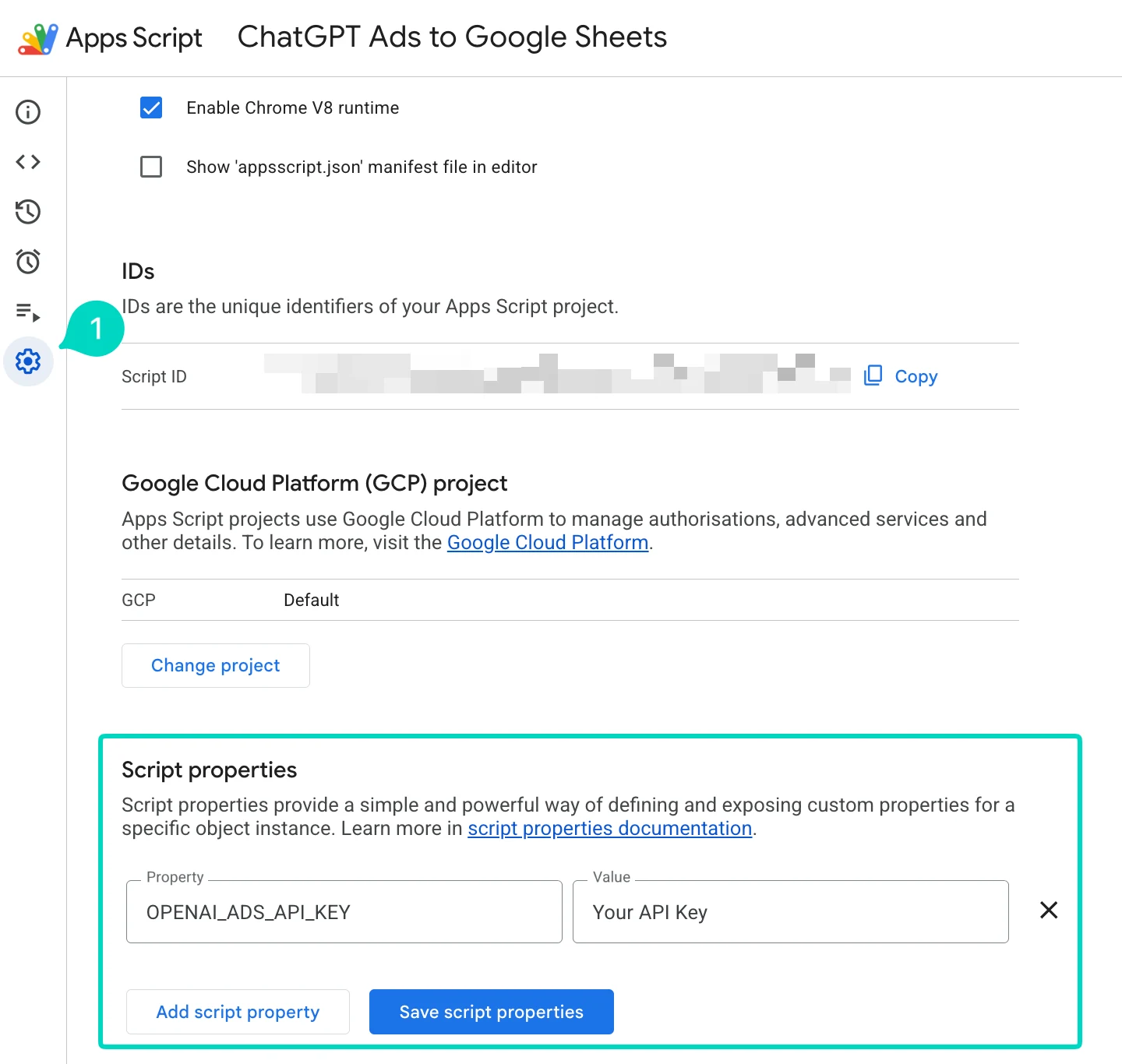
Anyone who can edit the script can read this property, so only give edit access to people who are allowed to see the key.
Step 5: Run setup and authorize
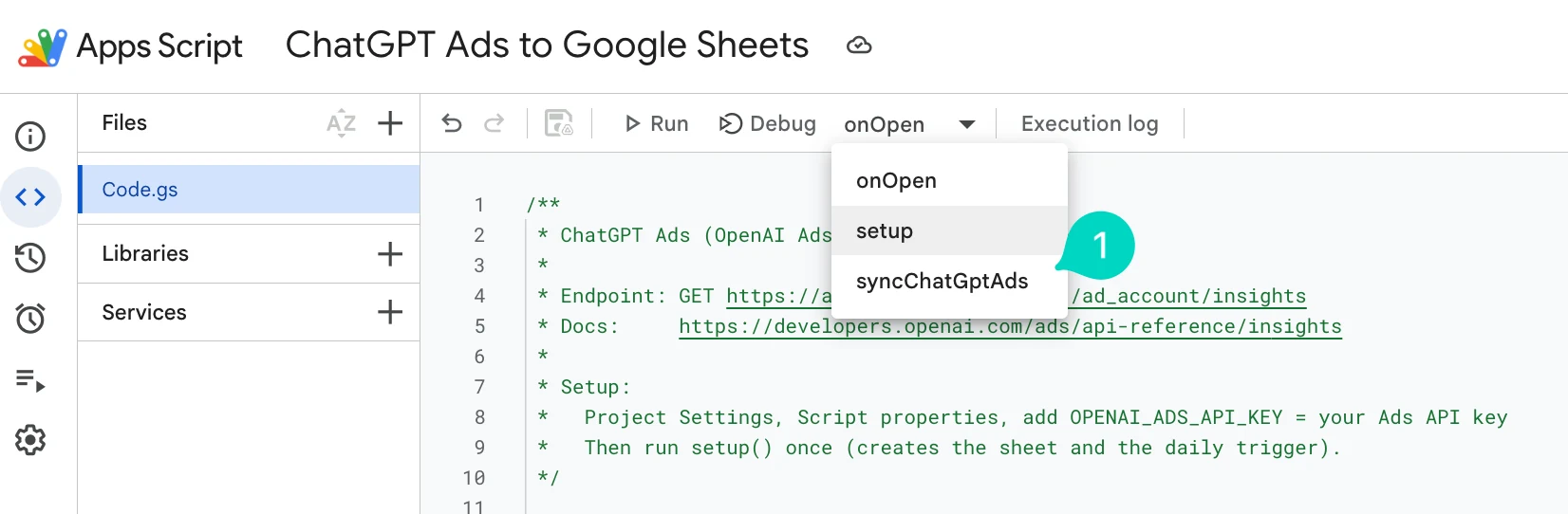
Click the Editor icon (the code brackets) on the left to go back to the code. In the function dropdown next to the Debug button, choose setup and click Run.
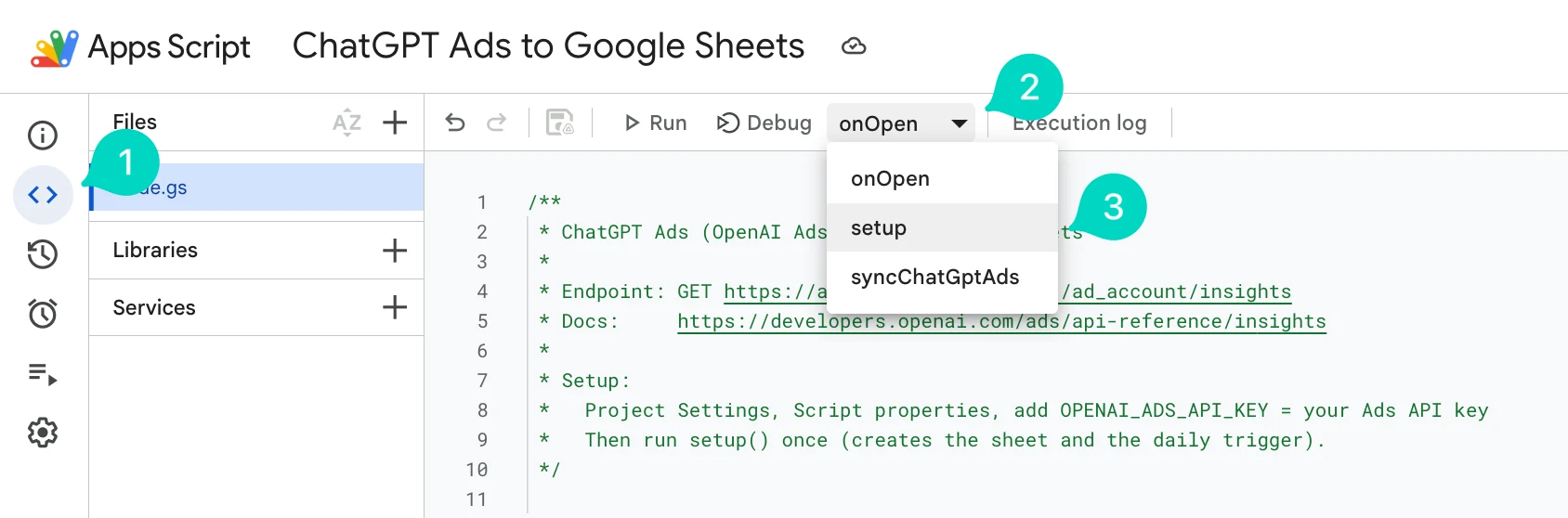
Step 6: Run the first download
Choose syncChatGptAds in the same dropdown and click Run.
From now on the trigger runs the sync daily between 6:00 and 7:00 in the script's time zone.
How the daily refresh behaves
- Rolling 30 days. Each run re-pulls the last 30 days up to yesterday and overwrites those rows. Older history stays as it is. Recent numbers can change slightly because late conversions are attributed back to the day of the ad interaction.
- Today is skipped. The current day isn't closed yet, so the script stops at yesterday.
- Zero rows. The script asks for rows with zero impressions too, so a campaign that didn't run on a given day shows a row of zeros. They don't affect totals.
- Don't type in the tab. The script rewrites and re-sorts it every run. Put your own formulas in a separate tab and read the data with column names or a QUERY, not a fixed range.
- Check runs. Apps Script, then Executions in the left menu, lists every run and its error.
Settings you can change
Everything adjustable sits in the CONFIG object at the top. After editing, save and run syncChatGptAds again.
| Setting | Default | Allowed values | What it does |
|---|---|---|---|
| SHEET_NAME | ChatGPT Ads | any text | Name of the target tab |
| DAYS_BACK | 30 | 1 to 365 | How many days back each run overwrites |
| LEVEL | campaign | ad_account, campaign, ad_group, ad | Level of each row |
| INCLUDE_CONVERSIONS | true | true, false | Whether to pull conversions |
| ATTRIBUTION_WINDOW_DAYS | 30 | 7, 14, 30 | Click-through attribution window |
| CURRENCY | USD | currency code | Label in the currency column |
OpenAI's docs say conversion requests must cover full days in the account's time zone and at most 365 days, which is where the 365 cap comes from. If you change LEVEL or SHEET_NAME, start with an empty tab, otherwise old and new levels mix in the same rows.
Troubleshooting
Open Apps Script, Executions, click the failed run and match the message:
| Error | Likely cause | What to do |
|---|---|---|
| Missing script property OPENAI_ADS_API_KEY | The key isn't saved, or the name has a typo | Check Script properties, the name must match exactly |
| HTTP 401 | The key is invalid or was deleted | Create a new key in Ads Manager and replace the property |
| HTTP 403 | The key can't access reporting | Check the key's permissions in Ads Manager |
| HTTP 400 | The API rejected a field or parameter | The script retries without conversions on its own. For anything else, read the full error message |
| Out of retries | Rate limit or API outage after five attempts | Wait and run it manually again |
| Sheet doesn't update | The trigger is missing or belongs to someone else | Run setup again |
Limits to know about
- Aggregated data only. The insights endpoint returns totals per day and level, not individual clicks or users.
- The trigger belongs to whoever ran setup. If that person loses access to the Sheet, run setup again from another account.
- The API is new. OpenAI is still changing it. If you hit an error you don't recognize, check the changelog in their documentation.
Frequently asked questions
Can I download ChatGPT Ads data to Google Sheets without an add-on? Yes. Google Sheets can call the OpenAI Ads API through Apps Script, which is built into every Sheet. The script above does it with no add-on or connector.
Does the script pull conversions?
Yes, when INCLUDE_CONVERSIONS is true. The API counts click-through and view-through goal conversions, with a 30-day click window and a 1-day view window by default. If the API rejects the conversion field, the script falls back to delivery metrics instead of failing.
Why do some rows show zeros? Those are campaigns that didn't run that day, and their time zone column may say UTC instead of your account's zone. The script requests zero-impression rows on purpose so every campaign has a row for every day. They don't change your totals.
Why do my numbers from last week change? Each run overwrites the last 30 days, and late conversions get attributed back to the day of the ad interaction, so recent days can move a little after the fact.
Can I use one Sheet for several ad accounts? An API key belongs to one ad account, so the simplest setup is one Sheet per account. You can then pull the tabs together in a reporting tab or in Looker Studio.
Is it safe to keep the API key in Apps Script? Script properties keep the key out of the code and out of the cells, which is the right place for it. Anyone with edit access to the script can read it, so only share edit access with people who may see the key, and delete the key in Ads Manager if it ever leaks.
If you'd rather have this set up and connected to a Looker Studio dashboard next to your Google Ads and Meta numbers, that's part of my Looker Studio reporting work. If you want to know the ChatGPT Ads conversions behind these numbers are tracked correctly in the first place, start with a tracking audit.
Related posts
- Conversion Tracking for OpenAI Ads ManagerChatGPT Ads uses the same pixel-plus-Conversions-API pattern as Meta and Google. Here's how to install the pixel, fire events, and add server-side tracking.
- UTM Tracking for ChatGPT Ads in GA4Without UTM parameters, GA4 sees every ChatGPT Ads click as one lump bucket. Here's how to tag destination URLs so GA4 can break out real traffic.
- Does ChatGPT Use Cookies? What OpenAI Ads SetDoes ChatGPT use cookies? Yes: 150 entries on OpenAI's own sites, plus two first-party cookies from the OpenAI Pixel on your website.
Related services
- Looker Studio ReportingLooker Studio reporting that pulls Google Ads, GA4 and CallRail into one dashboard with spend, leads and cost per lead, no manual exports.
- Tracking AuditGA4, GTM and conversion tracking audit for US businesses: a written report of what's broken, missing, or double-counted, in priority order.
Questions about how this affects your account?
Let's talk