How to Share Google Analytics 4 (GA4) Access
TL;DR: To share GA4 access, open Admin, choose Account access management or Property access management, click the + button, enter the person's Google account email, pick a role, and send. You need Administrator rights. Grant access at property level unless you want someone to reach every property in the account. Someone fixing your tracking usually needs Editor, and the No Cost Metrics and No Revenue Metrics restrictions can hide spend and revenue from a user.
To share GA4 access: open Admin, choose Account access management or Property access management depending on which level you mean, click the + button, enter the person's Google account email, pick a role, and send. You need Administrator rights to do this.
The step that actually matters is the one people skip: choosing account level or property level. Get that wrong and you hand someone access to properties you never intended to share.
How to share GA4 access, step by step
1. Open Admin and pick the right access level
Click the gear icon in the lower left of GA4, then choose Account access management to cover every property, or Property access management for one property only. Pick property level unless you genuinely mean account level, more on that distinction below.
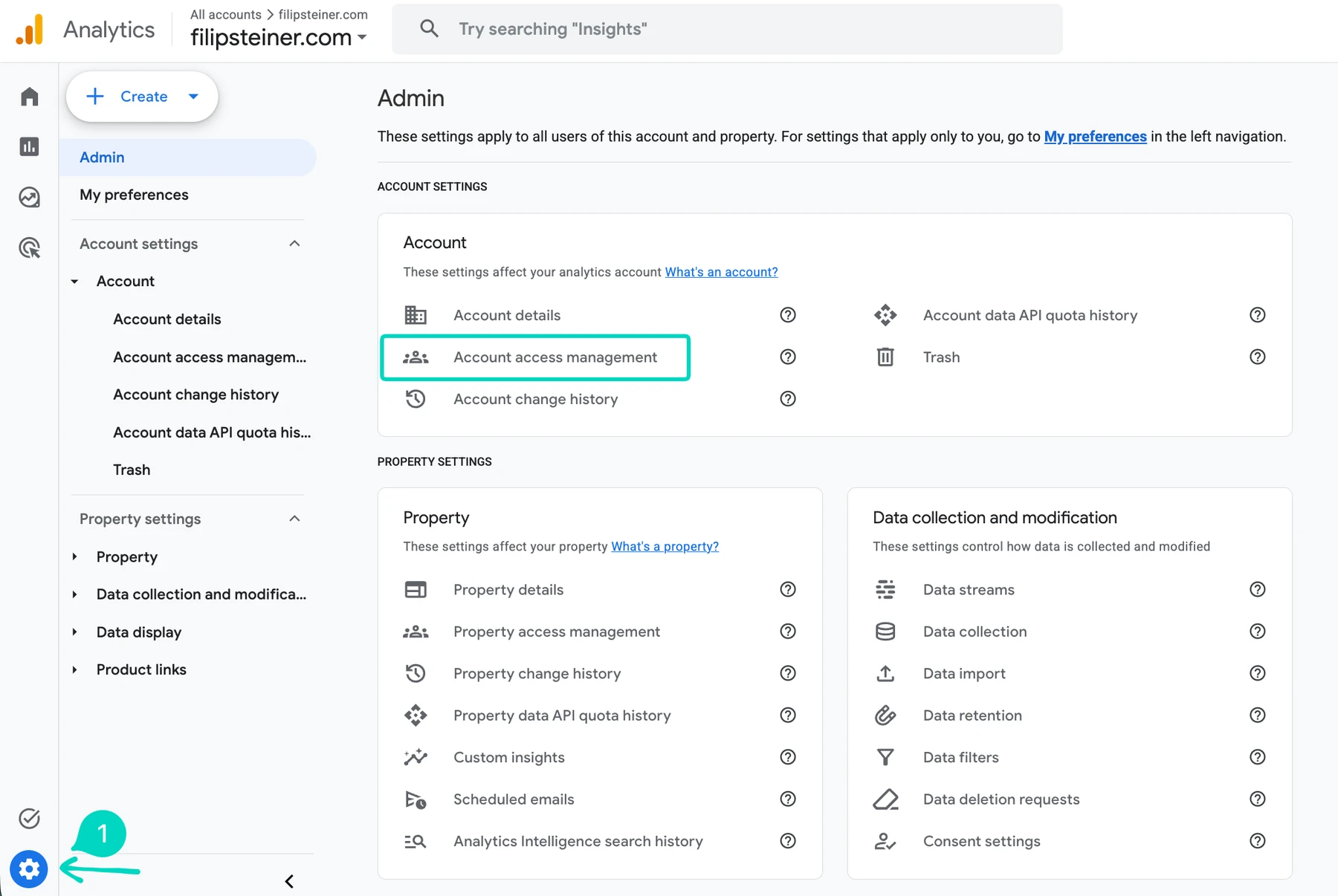
2. Click the + button, then Add users
You'll land on the access list showing everyone who currently has access. The blue + button in the top right opens a small menu, click Add users there, not Add user groups.

3. Enter the email, pick a role, and send
Enter their Google account email, choose a role under Standard roles, apply any data restrictions, and select Add. Leaving "Notify new users by email" ticked lets them know it happened.
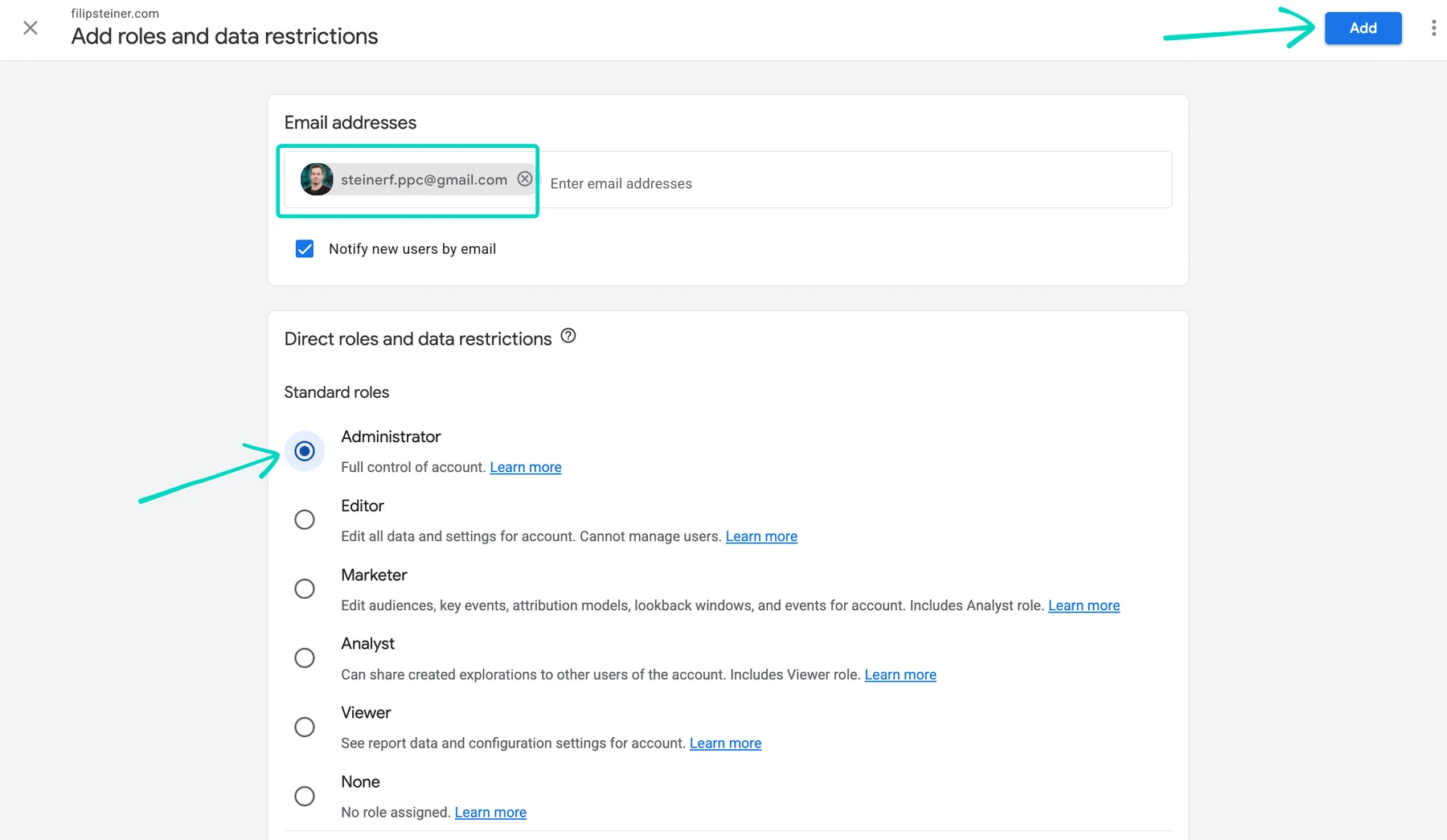
Access takes effect once they've been added. If someone can't see the property, the most common causes are that they were added to a different property, or added at property level when they needed account level.
If you're handing GA4 access to someone to fix your tracking, they'll usually need Editor, not Administrator. Tell me what you're trying to fix and I'll tell you the minimum access that covers the job.
Account level or property level?
GA4 access works in a hierarchy. An account can hold several properties, and where you grant access decides how far it reaches.
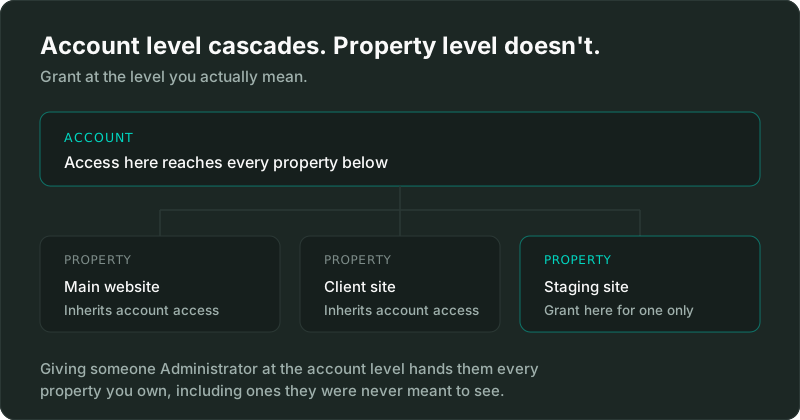
Account level access cascades down to every property in that account. If you have three properties under one account and grant someone Administrator at the account level, they get Administrator on all three.
Property level access applies to that one property only. This is what you want in most situations, especially when granting access to anyone outside your business.
The practical rule: unless you specifically want someone to reach every property you own, grant at the property level. It takes the same number of clicks and it's the difference between sharing one website's data and sharing everything.
What each GA4 role allows
GA4 has five roles, each including everything the one below it can do.
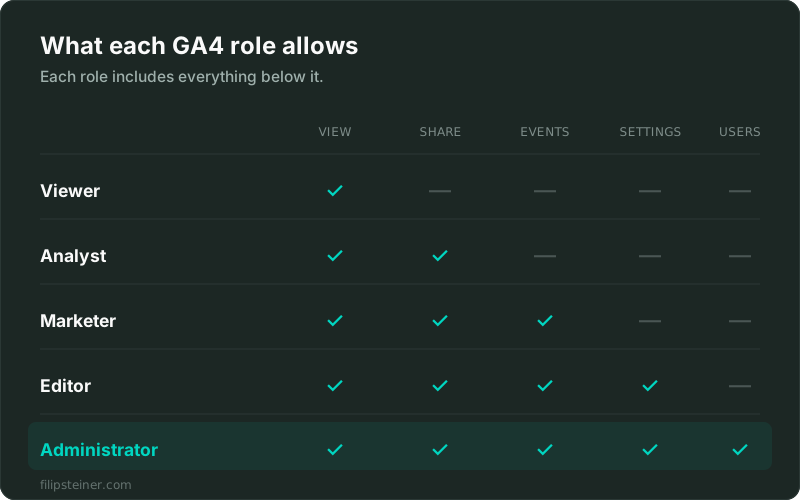
- Viewer: can see reports and data, and build explorations for themselves.
- Analyst: everything Viewer can do, plus sharing explorations with others.
- Marketer: everything Analyst can do, plus creating and editing audiences, events, key events, and attribution settings.
- Editor: full control of property settings. Can see the user list but cannot change who has access.
- Administrator: everything, including adding and removing users and assigning roles.
There's also None, which is exactly what it sounds like: the person is listed but has no access to that particular resource. It's mostly useful when someone has a role at one level and you want to explicitly withhold it at another.
Data restrictions: the feature most people miss
Separately from roles, GA4 lets you apply two data restrictions to a user:
- No Cost Metrics hides cost data, things like Google Ads spend and return on ad spend.
- No Revenue Metrics hides revenue data, including ecommerce revenue, average purchase revenue, and event values.
These apply everywhere that user looks, including reports, explorations, audiences, and the API. They're genuinely useful when you want someone analysing behaviour and traffic without seeing your margins or your ad budget. A contractor optimising page performance rarely needs to know what you spent last quarter.
Which role should you give?
- A stakeholder who reads reports: Viewer. Full visibility, nothing they can break.
- An analyst building and sharing reports: Analyst.
- Someone managing audiences and conversion events: Marketer.
- A tracking specialist fixing your setup: Editor. They need to change data streams, events, and property settings, and Editor covers all of it without handing over user management.
- A business partner or internal owner: Administrator, and keep this list short.
Editor is the right default for most agencies and freelancers. It lets them do the actual work while you keep control of who else gets in.
Keep at least one Administrator inside your business
If the only Administrator on your GA4 account is an agency or a contractor, you're one relationship breakdown away from losing access to your own analytics history. Make sure someone who works for you permanently holds Administrator, regardless of who else you add.
The same applies in reverse when people leave. Removing GA4 access should be part of offboarding, the same as email and everything else. Stale access is one of the most common things I find when auditing an inherited setup.
How to remove GA4 access
Same path: Admin, then Account access management or Property access management, select the person, and remove them or change their role. Check both levels, because someone removed from a property may still have access inherited from the account.
Frequently asked questions
What's the difference between account and property access in GA4? Account level access applies to every property in the account. Property level access applies to one property only. Grant at property level unless you deliberately want to share everything.
Can I give someone GA4 access without letting them change settings? Yes. Viewer and Analyst can both see data without editing anything. Analyst adds the ability to share explorations.
Do I need to give an agency Administrator access to GA4? Usually not. Editor gives full control of property settings, which is enough to fix tracking, configure events, and manage data streams. Administrator only adds user management on top.
Can I hide revenue or cost data from a user? Yes, using the No Revenue Metrics and No Cost Metrics data restrictions. They apply to that user everywhere, including the API.
Does the person need a Gmail address? No. Any Google account works, including one created with a work email address.
Why can't someone see the property I added them to? Usually they were added to a different property, or added at the wrong level. Check both account and property access management before assuming it's a bug.
Google's own reference is Add, edit and delete users and user groups.
If your GA4 numbers don't match what you're seeing in Google Ads, access isn't really the problem. That's usually a tracking problem, and it's what a GA4 tracking setup or a tracking audit is for.
Granting access to the other platforms works differently: here's how to share Google Tag Manager access, how to share Google Ads access, and how to share CallRail access.
Related posts
- How to Share Google Ads Account AccessShare Google Ads access in four steps, what each of the five access levels can do, and when to use a manager account instead.
- How to Share Google Tag Manager AccessShare Google Tag Manager access in four steps, plus which of the five permission levels to actually give someone and why it matters.
- How to Share CallRail AccessShare CallRail access in a few steps, what each of the four user types can actually do, and the one permission that catches people off guard.
Related services
- GA4 Tracking SetupGA4 tracking setup for local service and ecommerce businesses: events, key events, and cross-domain tracking built around real leads and sales.
- Tracking AuditGA4, GTM and conversion tracking audit for US businesses: a written report of what's broken, missing, or double-counted, in priority order.
Questions about how this affects your account?
Let's talk