How to Share Google Tag Manager Access
TL;DR: To share Google Tag Manager access, open Admin, select User Management, click Add users, enter a Google account email, choose a permission level, and click Invite. You need account-level Administrator rights. Permissions are set at two levels, account and container, and for outside help the container column is almost always the right place. Edit lets someone build tags but not publish them, so a specialist hired to own tracking usually needs Publish.
To share Google Tag Manager access: open Admin, select User Management, click Add users, enter the person's Google account email, choose their permission level, and click Invite. You need account-level Administrator rights to do this, and they'll get an email invitation to accept.
That's the mechanical answer. Whether you think of it as sharing access or giving someone access to your Google Tag Manager account, the part that actually matters, and the part most people get wrong, is which permission level to give. Give too little and the person you hired can't do the work. Give too much and someone can push a broken tag live on your site with no review. Here's how to get both right.
How to share Google Tag Manager access, step by step
1. Open Admin and pick the right User Management
Click Admin in the top navigation. You'll see two columns, and each has its own User Management entry. This is the step people get wrong.
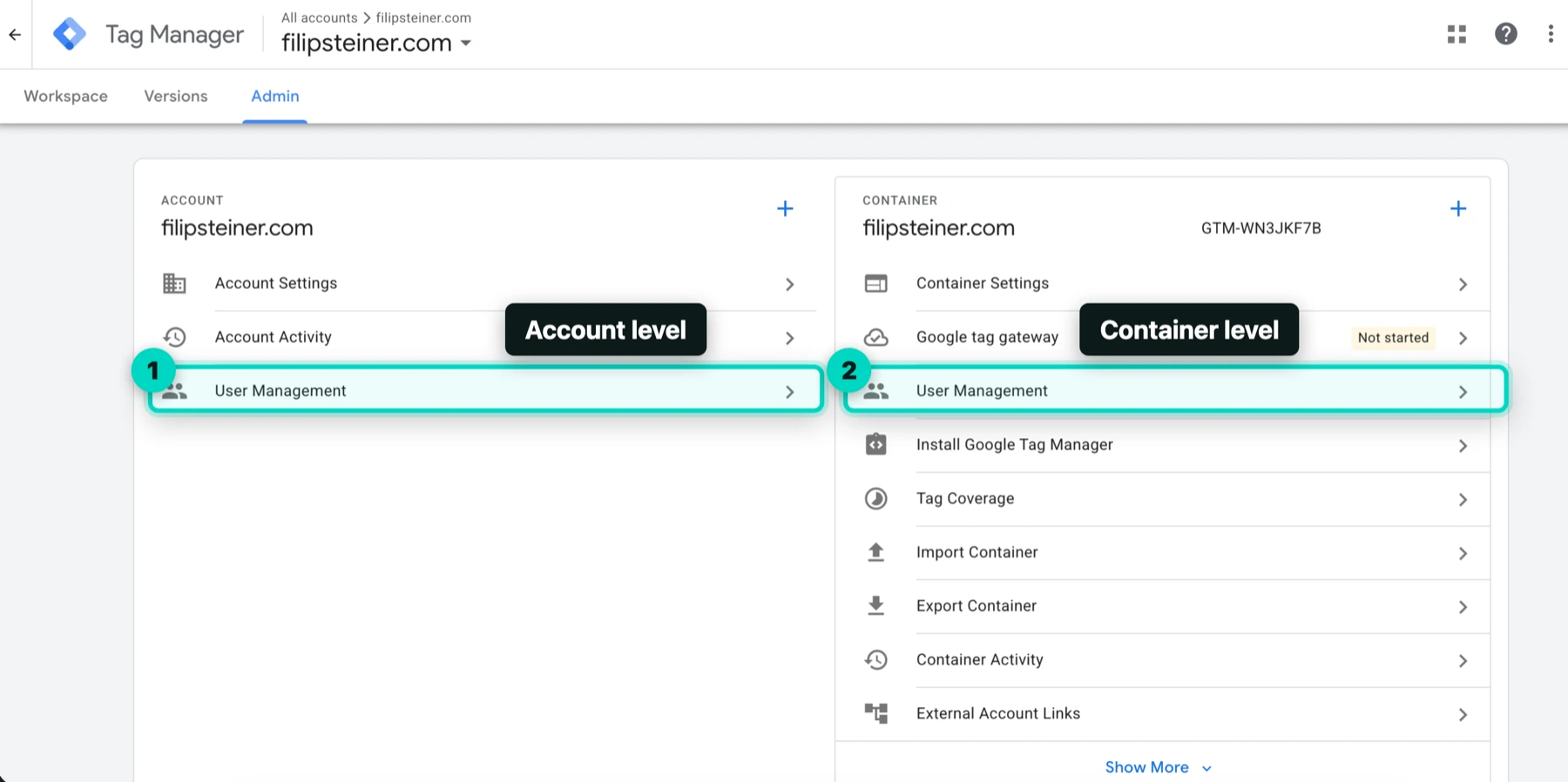
Use the Account column to grant access across the whole account, or the Container column to grant access to one container only. If you're giving access to someone outside your business, the container column is almost always the right choice.
2. Click the + button to add users
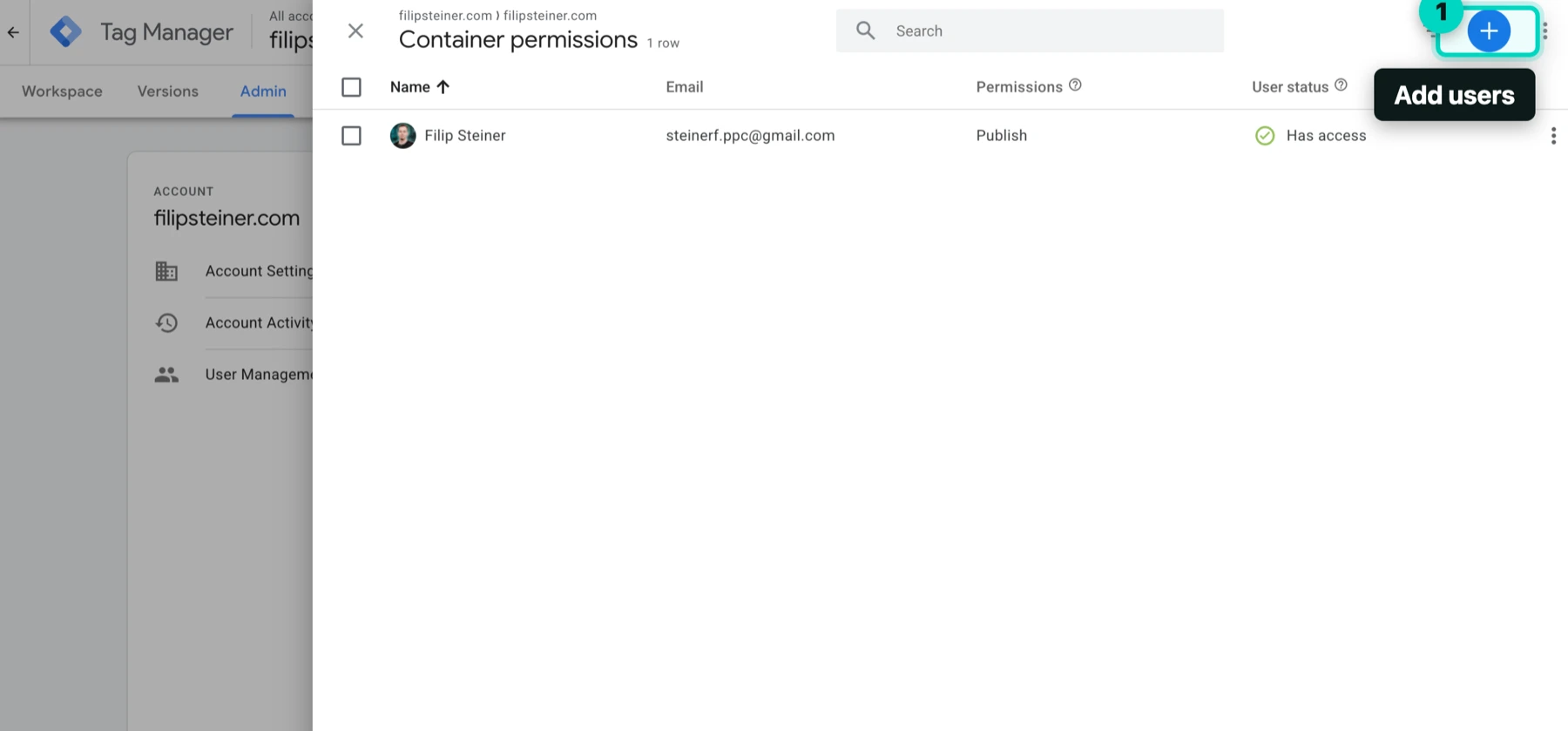
You'll land on the permissions list showing everyone who currently has access. The blue + button in the top right is what adds someone new.
3. Enter the email and set the permission level
Enter their email address, which has to be a Google account. A work address only works if it's registered as one.
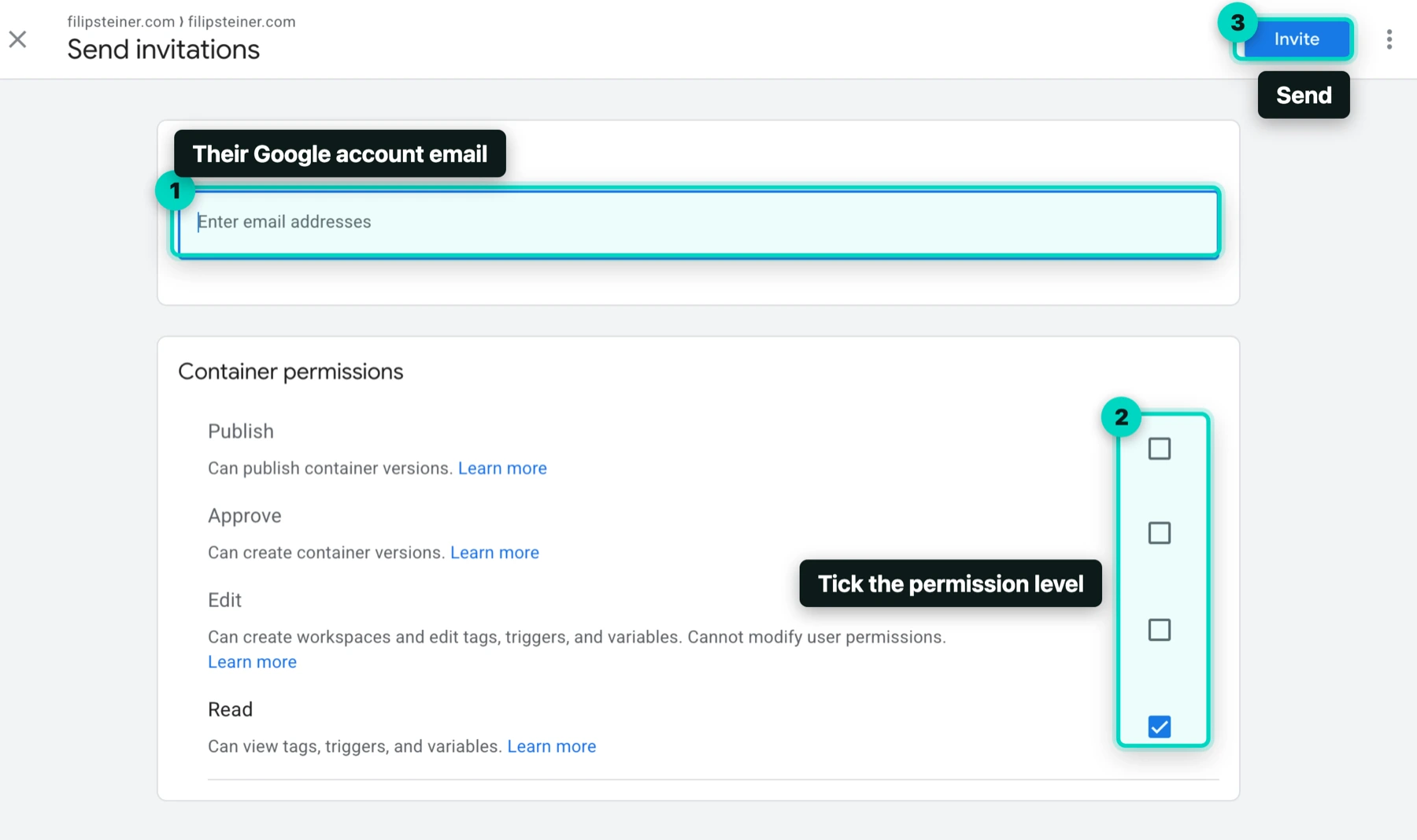
Then tick the permission level you want, using the table further down to decide, and click Invite. If you opened this from the Account column you'll also see account-level options here.
Access isn't active until they accept the invitation. If someone says they can't see your container, an unaccepted invite is the first thing to check.
Before you start: you need Administrator rights
You can only share access if you have account-level Administrator permissions. If you open Admin and don't see User Management, you're not an administrator on that account, and no amount of clicking will change that. Someone who is an administrator has to either grant you those rights or make the invitation themselves.
This trips up a lot of business owners whose original GTM container was set up by a former employee or a previous agency. If nobody at your company has admin rights anymore, you can't grant access to anyone, and you may need to recover the account or start a new container. That's a common enough situation that it's part of what a GTM setup and cleanup usually starts with.
Google Tag Manager has two permission levels, not one
This is the single most common source of confusion. GTM permissions exist at two separate levels, and you set both when you invite someone.
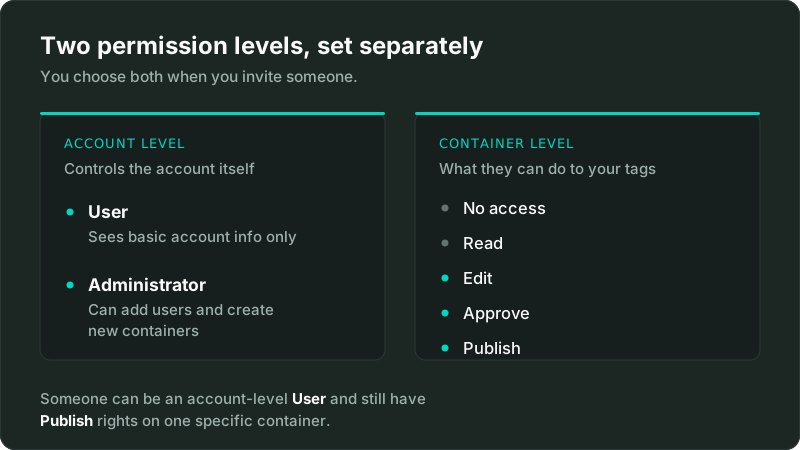
Account level controls the account itself. There are two options: User (can see basic account information) and Administrator (can create new containers and manage user permissions).
Container level controls what someone can actually do to your tags. There are five options, covered below.
The two are independent. Someone can be an account-level User with no admin powers at all, while still having full Publish rights on one specific container. For most people you're granting access to, that combination is exactly what you want.
What each container permission actually allows
Five levels, each one including everything below it:
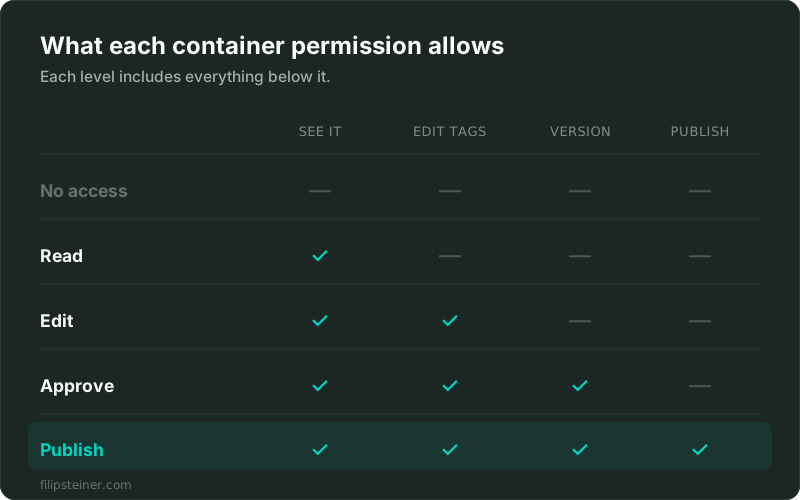
- No access: the container doesn't appear in their account at all.
- Read: they can browse your tags, triggers, and variables, but cannot change anything.
- Edit: they can create workspaces and make changes, but cannot create versions or publish.
- Approve: they can create versions and workspaces and make edits, but still cannot publish.
- Publish: full rights, including pushing changes live to your website.
The gap between Edit and Publish is the one worth understanding. Someone with Edit can do all the work of building tags, but nothing they build reaches your live site until someone with Publish rights approves and pushes it. That's a genuine safety net, not bureaucracy.
Which permission level should you actually give?
Here's how I'd decide, based on who's asking:
- A colleague who just needs to check what's running: Read. No risk, full visibility.
- A developer implementing a specific tag: Edit. They can build, you review and publish.
- A cautious setup with review built in: Edit for the builder, Publish reserved for one person internally.
- A tracking specialist or agency you've hired to own measurement: Publish, plus Administrator only if they need to create new containers.
The instinct to give everyone the minimum sounds safe, but it backfires often. If you hire someone to fix your conversion tracking and give them Edit only, every change waits on you to log in and publish. That turns a one-day job into a two-week back-and-forth, and it's how tracking projects quietly stall.
Not sure what level to hand over, or inherited a container nobody understands anymore? Ask me to take a look at your setup, sorting out messy GTM containers is a large part of what I do.
Sharing GTM with an agency or freelancer
If you're granting access to an outside specialist, a few practical rules:
- Grant access to your own container. Never hand over your Google account password. Sharing login credentials is both a security risk and against Google's terms. The invitation system exists precisely so you don't have to.
- Keep at least one administrator inside your own company. If your agency holds the only admin seat and the relationship ends, recovering access is genuinely painful. Google won't let the last remaining administrator be removed, so make sure that last one is you.
- You own the container, not them. As long as your account is the account, you can revoke access at any time, in seconds.
That last point is worth stressing to anyone nervous about granting Publish rights. Access you granted is access you can remove instantly, without involving the other party.
How to remove Google Tag Manager access
Same path as granting it. Open Admin, go to User Management, click the person's entry, and either change their permission level or remove them entirely. The change takes effect immediately.
Worth doing on a schedule: every time a contractor's engagement ends or an employee leaves, their GTM access should come off the list the same day. Old, forgotten access is one of the most common security gaps I find when running a tracking audit on an inherited account.
Frequently asked questions
Can I share Google Tag Manager without giving admin access? Yes, and you usually should. Give container-level permissions (up to Publish) while leaving their account-level role as User. They can do everything needed inside your container without being able to add other users or create containers.
Why can't I see User Management in GTM? You don't have account-level Administrator rights. Only administrators can view or change user permissions, so someone who does have those rights needs to grant them to you.
Does the person need a Gmail address? They need a Google account, which doesn't have to be a Gmail address. A work email registered as a Google account works fine.
How many people can I share a GTM container with? Google doesn't publish a practical limit for normal use. The bigger risk isn't the number of users, it's that nobody ever removes old ones, which is why periodic access reviews are worth doing.
What happens if I give someone Publish access? They can push changes live to your website without anyone else approving. That's appropriate for a specialist you've hired to own tracking, and inappropriate for someone still learning the platform.
Is sharing access safer than sharing my password? Considerably. Proper access sharing is revocable, logged per user, and scoped to the exact container you choose. A shared password is none of those things.
Google's own reference on this is Managing users and permissions in Tag Manager.
If your tracking setup needs more than an access change, whether that's tags nobody can explain, numbers that don't match GA4, or a container that's never been cleaned up, that's exactly what I fix. I rebuild GTM containers so they're documented, accurate, and maintainable by whoever comes next.
Granting access to the other platforms works differently: here's how to share Google Ads access, how to share GA4 access, and how to share CallRail access.
Related posts
- How to Share Google Ads Account AccessShare Google Ads access in four steps, what each of the five access levels can do, and when to use a manager account instead.
- How to Share Google Analytics 4 (GA4) AccessShare GA4 access in four steps, what each of the five roles can do, and the difference between account and property level access.
- GTM Now Writes Version Descriptions With AIWhen you publish a GTM version now, an AI writes the name and a tag-by-tag description of what changed, without you typing a word. Here's what I saw.
Related services
- GTM SetupGoogle Tag Manager setup and cleanup for US businesses: duplicate tags removed, containers rebuilt clean, documented, and tested in Preview.
- Tracking AuditGA4, GTM and conversion tracking audit for US businesses: a written report of what's broken, missing, or double-counted, in priority order.
Questions about how this affects your account?
Let's talk