Track Google Ads Website Calls in CallRail
TL;DR: To track phone calls from your website back to Google Ads, create a CallRail website pool (On my website, then Calls, keywords, & web sessions), choose which visitors to track and which number on your site to swap, then install CallRail's JavaScript snippet, turn on auto-tagging in Google Ads, and connect the Google Ads integration. Per CallRail, only calls to a website pool with a source of Google Ads report as conversions, and they show up as a "Phone Call" action, not "Calls from ads." Test with a private window and ?gclid=test before you trust the numbers.
This is the setup for calls that start on your website: someone clicks your ad, lands on a page, and calls the number they see there. CallRail swaps that number for one from a pool, so each visitor sees a different number, and when that visitor calls, CallRail knows which click and keyword brought them. That's what lets it send the call back to Google Ads as a conversion.
Calls from the call button on the ad itself never touch your website, so they need a different setup. I cover that in how to track Google Ads call assets in CallRail, and why in why call extensions won't track as conversions. If you want both paths in one place, there's an overview of the full setup.
The steps below use screenshots from a setup I did in a client account, with identifying details removed. They follow CallRail's help articles on creating a website pool and its Google Ads integration.
If you would rather watch than read, here is the whole setup in about a minute and a half.
Before you start
- Access to edit your website, or someone who can paste a script on every page.
- Google Ads access to turn on auto-tagging and authorize CallRail.
- A number on your site to swap. This is usually your primary business number, and it needs to be real text on the page. CallRail detects formats like 111-222-3333, 111.222.3333, and (111) 222-3333. Numbers inside images need special steps, and CallRail says it isn't compatible with GoDaddy sites because of iframes.
- A number to forward calls to, usually the same business line.
Step 1: Create the website pool in CallRail
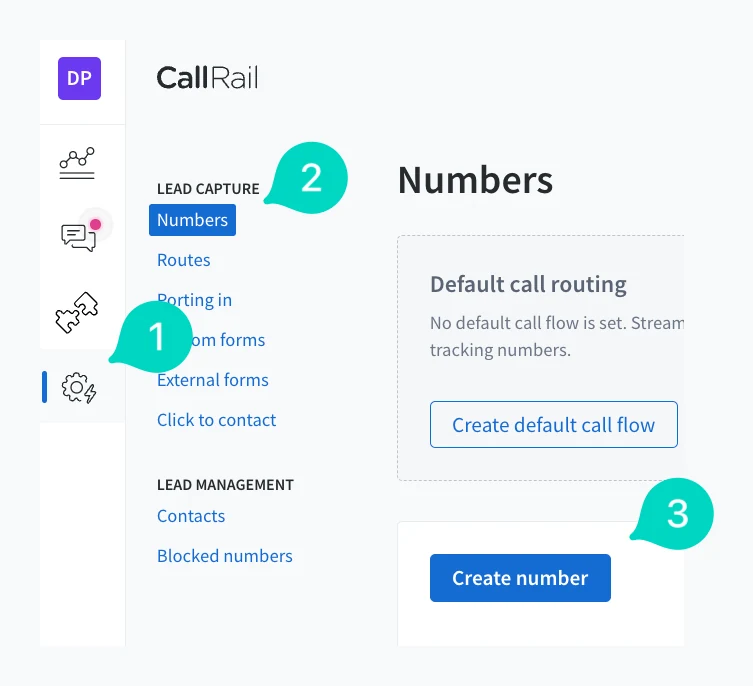
- Open Numbers and click Create number. The path is the settings gear, then Numbers under Lead Capture, then Create number, the same as in the call assets guide.
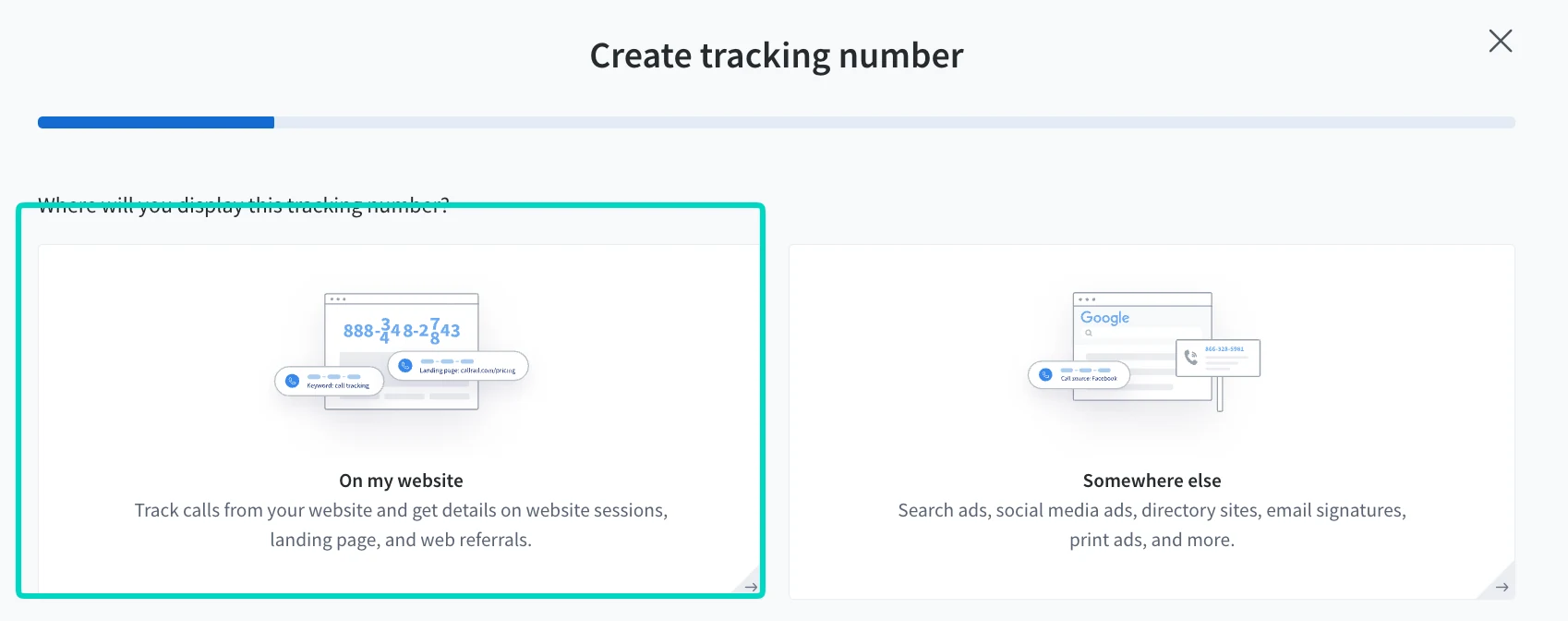
- Choose "On my website." The first question asks where you'll display the number. Pick "On my website," which CallRail describes as tracking calls from your website with details on sessions, landing page, and web referrals.
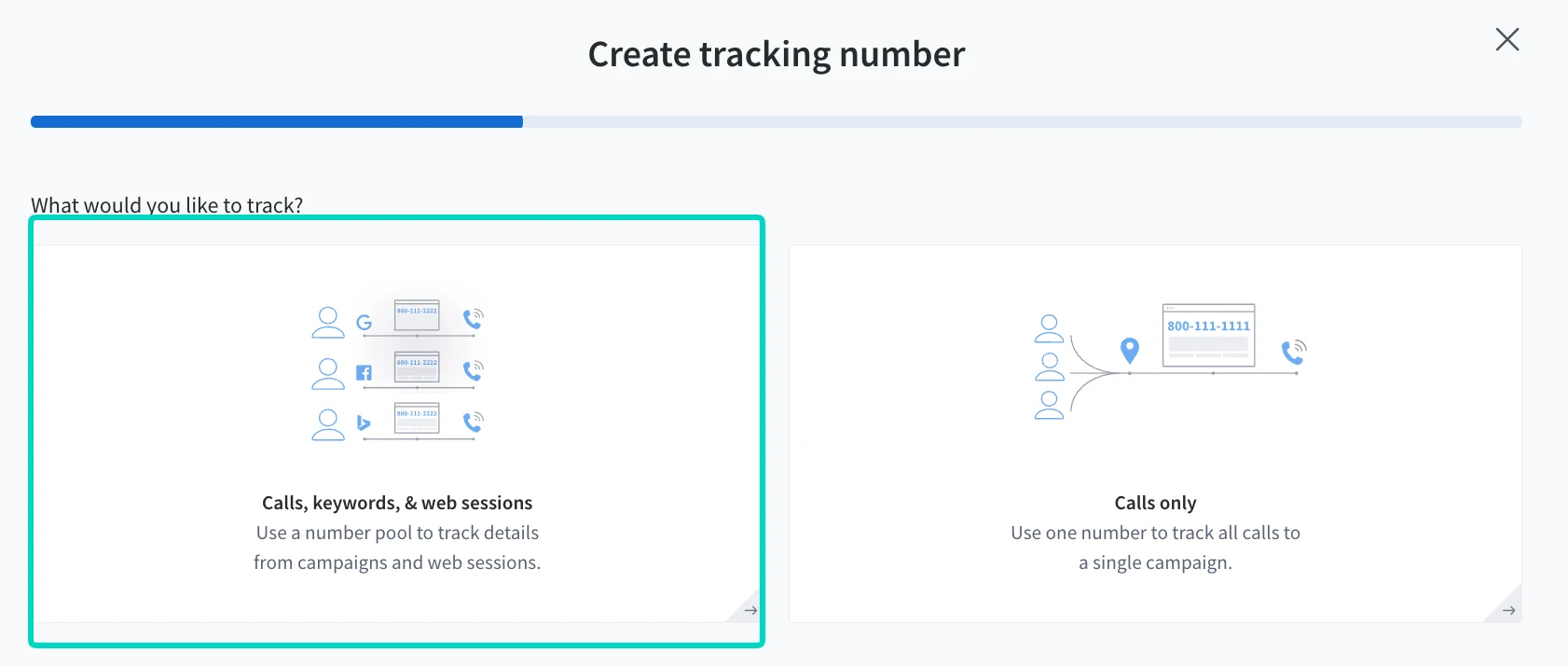
- Choose "Calls, keywords, & web sessions." This is the number pool option. "Calls only" uses one number to track all calls to a single campaign, with no visitor-level data.
- Choose which visitors to track and set the swap target. I selected "Visitors from Google Ads," so only people who arrive from my Google Ads campaigns see a tracking number. The other choices are All visitors, PPC search, Landing page or URL parameter, and Referring page. In the swap target box, enter the phone number that's on your website. CallRail looks for it and replaces it with a pool number.
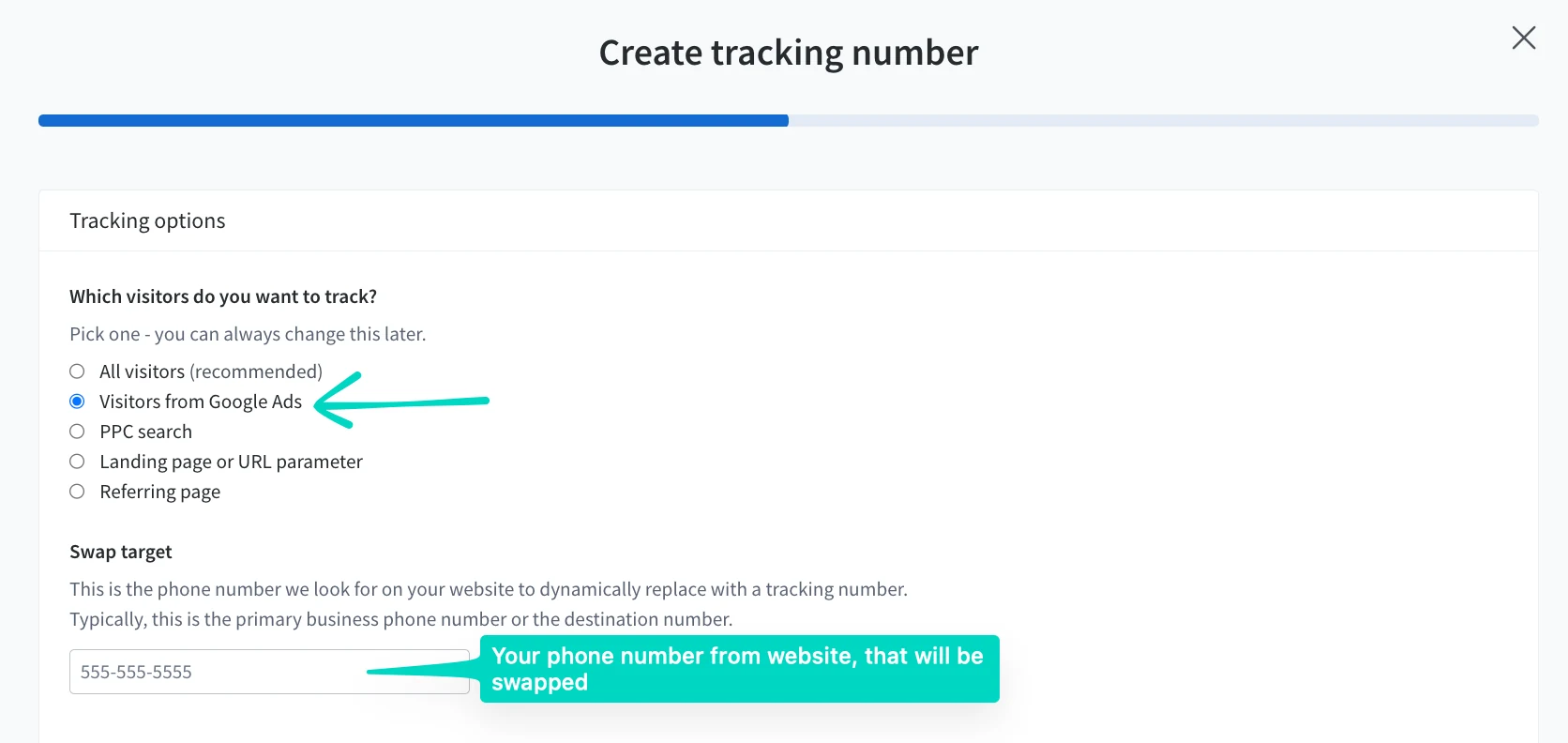
CallRail recommends All visitors in most cases, which tracks every visitor regardless of source and gives you organic and direct calls in the same reports. I limit this pool to Google Ads when the goal is clean paid-call reporting. Per CallRail, only calls to the website pool with a source of Google Ads report as conversions to Google Ads, whichever option you choose.
- Set the pool size and name it. CallRail asks how many tracking numbers to create. The minimum is four, which CallRail says is to reduce visitor-to-call misattribution. Name the pool clearly, because that's how it appears in your reports. You can also change the area code or pick a toll-free number.
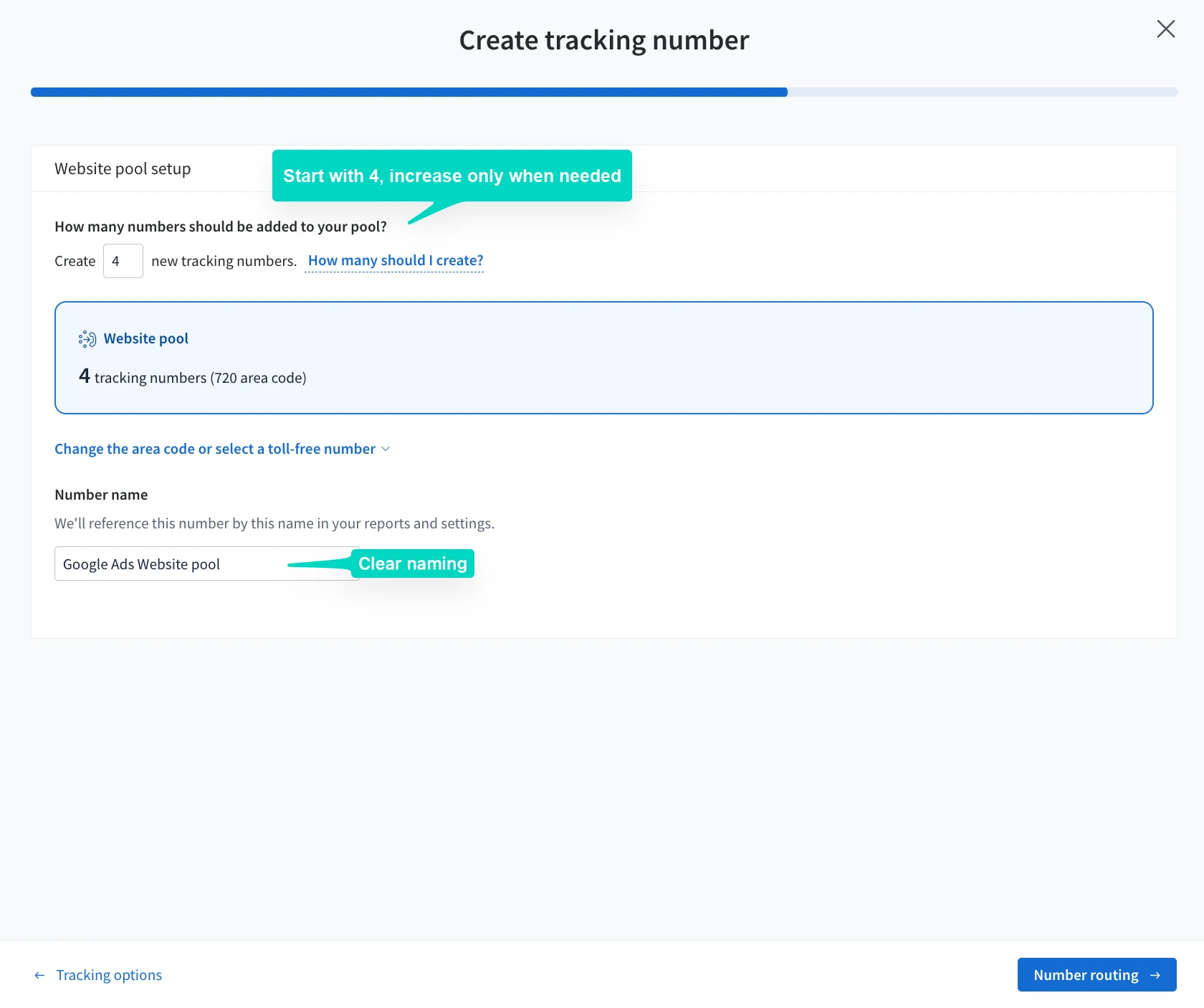
On a small local-service site, I start at the minimum of four. CallRail's own rule is peak hourly visitors divided by four, so a site with 100 visitors in its busiest hour needs 25 numbers. If the pool is too small, two visitors can see the same number and their sessions get merged, which is misattribution. CallRail says you can increase or decrease the pool later. Each number in the pool counts as one number on your invoice.
- Route the calls and activate. Choose where calls go, usually "Forward to phone number" with your business line. Set call recording and a whisper message if you want them, then click Activate tracking number.
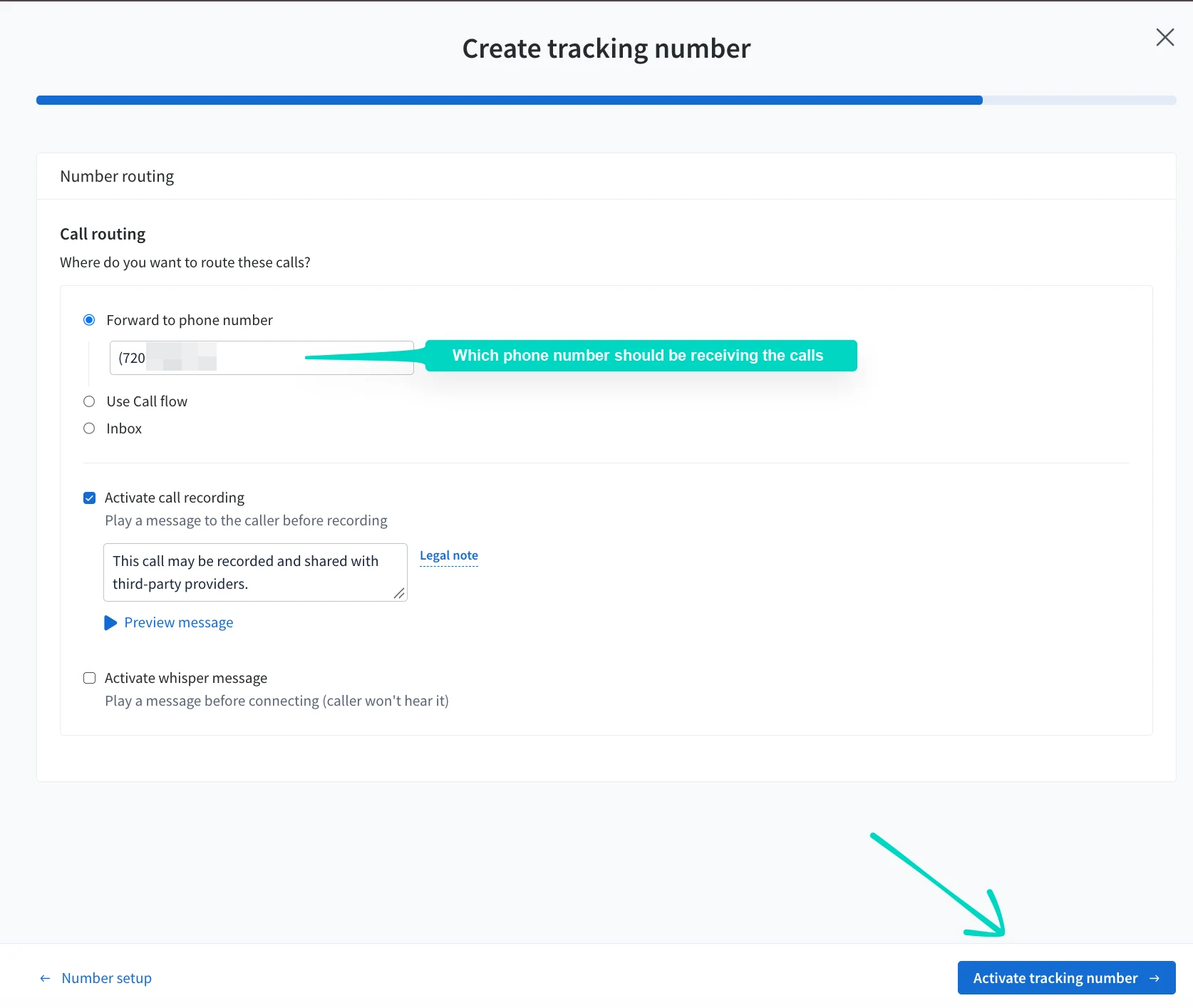
The screenshot shows call recording on with a notice that the call may be recorded and shared with third-party providers. Recording consent rules depend on where your callers are, so check yours with your own counsel and see the "Legal note" link in CallRail.
Step 2: Install the CallRail snippet on your website
This step isn't in the screenshots, so I'm following CallRail's documentation. In CallRail, click the Integrations icon, choose JavaScript Snippet, choose the company, and copy the code. Paste it into every page of your site right before the closing body tag. Each company has its own snippet, and the same one powers call and form tracking.
CallRail says it must be on the landing page and on each page with a phone number or form you want to track. If you're on WordPress or Wix, CallRail points you to its plugin instead, and for Google Tag Manager it has a separate install guide. Its auto-test also flags snippets that contain curly quotes or other stylized characters, so paste the code as plain text.
Step 3: Turn on auto-tagging and connect Google Ads
CallRail says its Google Ads integration requires three things: the JavaScript snippet, visitor tracking, and auto-tagging in Google Ads. Without auto-tagging, there's no click ID for CallRail to match.
To connect it, in CallRail:
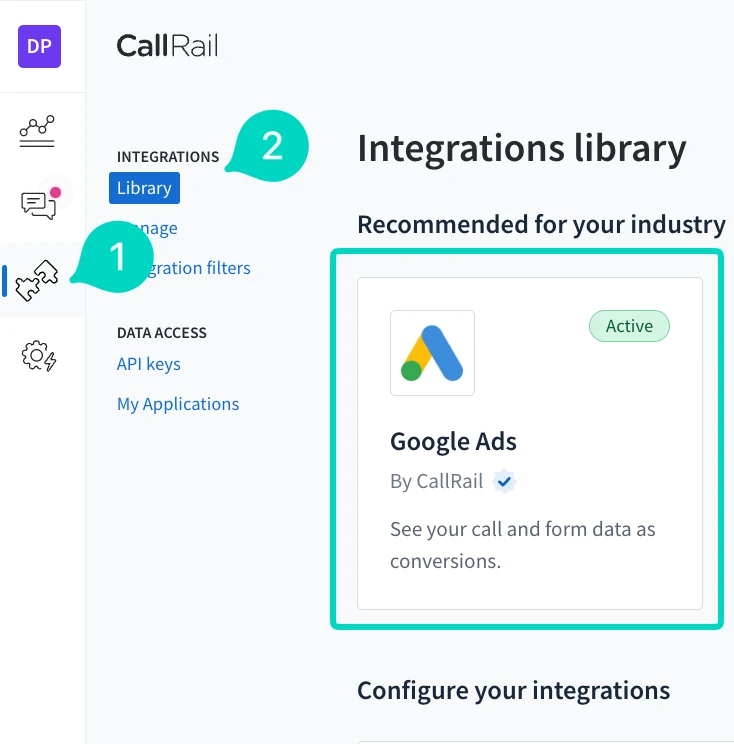
- Open the Integrations library. Click the Integrations icon (1), then Library (2), and open the Google Ads card. It shows an Active badge once the integration is connected.
- Authorize. Choose the company, click Authorize and Allow while signed in to the Google Ads account you want to use, then select that account to take the integration out of pending. CallRail's article describes this part. I didn't screenshot it.
- Choose what to send as conversions. On the Conversions settings, under Calls, check "Send calls as conversions." You can create one conversion action for all calls, or separate actions for first-time and repeat callers. My account uses the separate actions, and the screen recommends them if you use Google's automated bidding to optimize around first-time callers. Under Texts and Forms, I also send text messages and form submissions as conversions.
- Click Update. On a first setup, CallRail's article calls this button Activate. It reads Update here because the integration was already active.
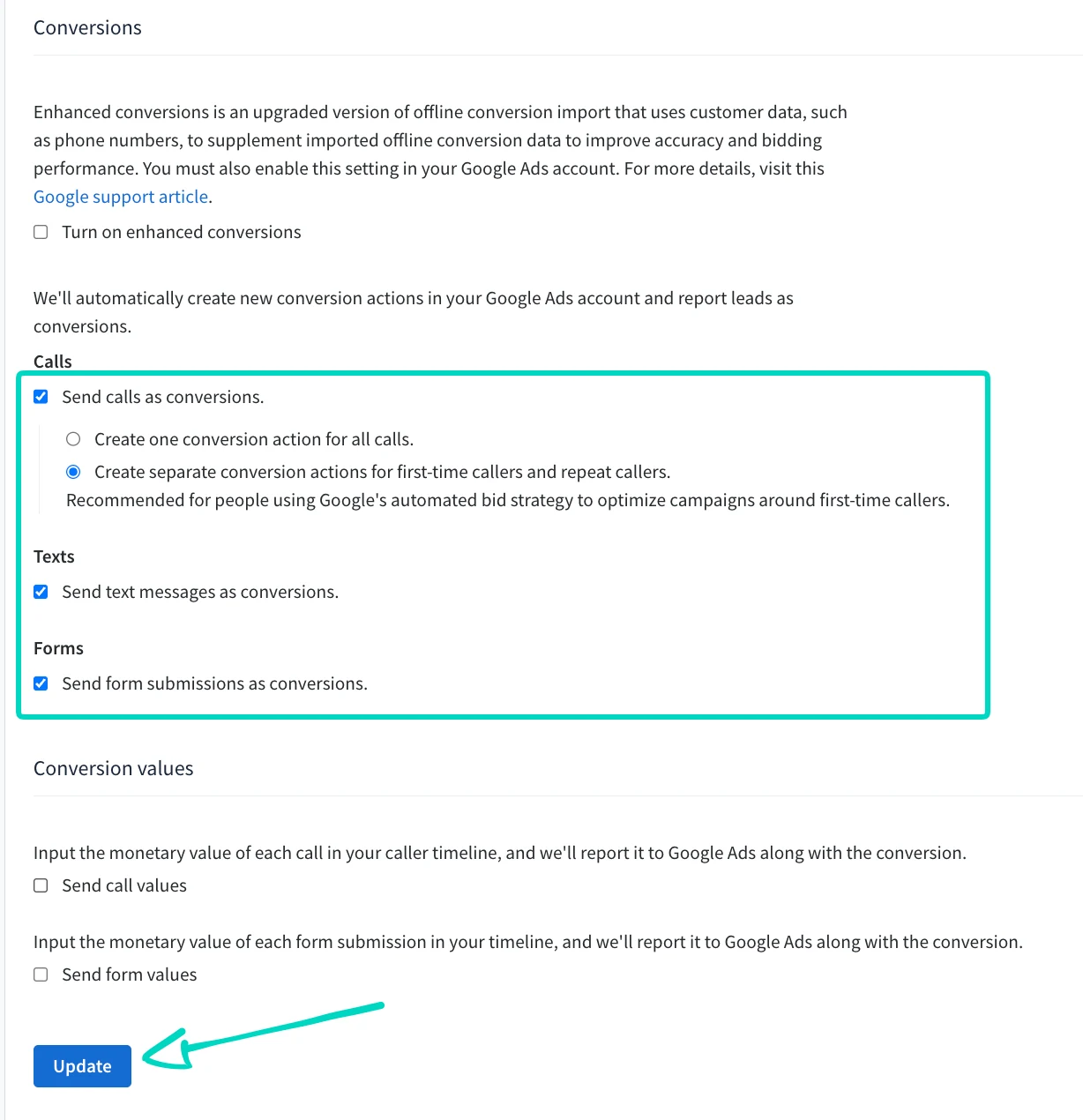
Two other settings are on that screen. "Turn on enhanced conversions" is unchecked in my setup. It uses customer data such as phone numbers to supplement imported offline conversion data, and the screen says you must also enable it in Google Ads. CallRail's FAQ says you don't need enhanced conversions with its integration, because it posts conversions using Google's click IDs. The "Send call values" and "Send form values" options let you enter a monetary value for each call or form in the caller timeline, and CallRail reports it to Google Ads with the conversion. Both are unchecked in my setup.
CallRail then creates a "Phone Call" conversion action in Google Ads (or "First Time Phone Call" and "Repeat Phone Call"), with the source "Import from clicks." It recommends setting these as Primary actions so they appear in reports and can be used in automated bidding. Don't rename the action or change its source, because CallRail says either one stops conversion data from being sent.
Two limits worth knowing: the integration only captures calls and forms from after you activate or update it, and CallRail says any change can take up to 24 hours to register in Google Ads. It also doesn't work with "pay for conversions" bidding.
Step 4: Remove anything that overrides the pool
CallRail's swap precedence rules say any source tracking number takes precedence over a website pool. If you already have a source-level number, such as a Google PPC one, set its swap setting to offline or deactivate it, or the pool won't swap for those visitors.
Step 5: Test it
- Open a private window (or clear your cookies). CallRail says to test as a brand-new visitor, and to close all private windows between tests.
- Add ?gclid=test to your URL, for example yourwebsite.com/?gclid=test. CallRail documents this as a way to simulate a Google Ads click without a real ad.
- Check that your number swapped on every page that has one, including on mobile. CallRail says to test each page individually.
- Place a test call to the number you see, then open CallRail's Activity and confirm the call appears with a Google Ads source.
- Check Google Ads after a day. Look for the "Phone Call" action under Goals. A test click isn't a real ad click, so I wouldn't expect the test call to become a conversion in Google Ads. Real ad clicks will.
Common problems
- The number isn't swapping. The most common cause is a swap target that doesn't match the number on the page. CallRail also lists caching and optimization plugins, and testing as the wrong type of visitor, as common causes.
- Calls show in CallRail but not as conversions in Google Ads. Check that auto-tagging is on, the conversion wasn't renamed, the call happened after you activated the integration, and the call's source is Google Ads. CallRail says calls to source trackers don't report as conversions with this integration.
- My conversions aren't under "Calls from ads." They won't be. CallRail says its calls report only to the "Phone Call" action it creates, separate from Google's own "Calls from ads."
- Double counting. Make sure only one system counts your website calls. If you track them with CallRail's action, don't also count the same calls with another call conversion action.
Frequently asked questions
What is a CallRail website pool? A group of tracking numbers that CallRail assigns one per visitor, so each visitor sees their own number on your website. When someone calls, CallRail matches the call to that visitor's source and keyword. CallRail says you need a pool to report on calls by PPC keyword or to send call conversions to ad platforms like Google Ads.
How many numbers should a website pool have? The minimum is four. CallRail's rule is peak hourly visitors divided by four, from Google Analytics. A pool that's too small can show the same number to two visitors and misattribute calls, and you can change the size later.
Do I need auto-tagging for CallRail to report conversions to Google Ads? Yes. CallRail lists auto-tagging, the JavaScript snippet, and visitor tracking as requirements for the integration, and it needs auto-tagging for both calls and forms to report as conversions.
Why don't my CallRail conversions show under "Calls from ads"? CallRail's calls report to the "Phone Call" conversion action its integration creates. Google's "Calls from ads" action comes from Google's own call tracking and is separate.
Should I track all visitors or only Google Ads visitors? CallRail recommends all visitors in most cases. Choosing Visitors from Google Ads limits the swap to people from your campaigns. Either way, per CallRail, only calls with a Google Ads source report to Google Ads as conversions.
How is this different from tracking call assets? A website pool tracks calls from visitors who land on your site. Calls from the call button on the ad itself skip your website, so they use a CallRail Google Ads Assets number and Google's Call Details Forwarding instead.
If you'd rather have this built and checked end to end, including the snippet, the pool, the Google Ads integration, and the conversion actions, that's what my CallRail integration service covers. If it's already live and the numbers don't add up, start with a tracking audit.
Related posts
- Track Google Ads Call Assets in CallRailStep by step: create a CallRail Google Ads Assets number, add it as a Google Ads call asset, and turn on call reporting so calls are tracked.
- Call Extensions Won't Track as ConversionsCallRail can't capture calls from call extensions, no landing page loads for them. The real fix is Google's own Call Details Forwarding, not a CallRail setting.
- What Is a Google Ads Conversion?A conversion is a specific action you've told Google Ads to count as valuable, not a click or a visit. Here's what counts and how to set one up.
Related services
- CallRail IntegrationCallRail integration with Google Ads and GA4 that ties each phone lead to its campaign and keyword, so bidding learns from real calls.
- Tracking AuditGA4, GTM and conversion tracking audit for US businesses: a written report of what's broken, missing, or double-counted, in priority order.
Questions about how this affects your account?
Let's talk